How It Works: From Forwarding to Your First Call
Your receptionist answers forwarded calls as your business, collects the details you request and sends you the results. Try a conversation in the browser demo, then set up your own call handling through the onboarding chat.
A 14-day free trial on request, up to 100 minutes.PrivacySecurity
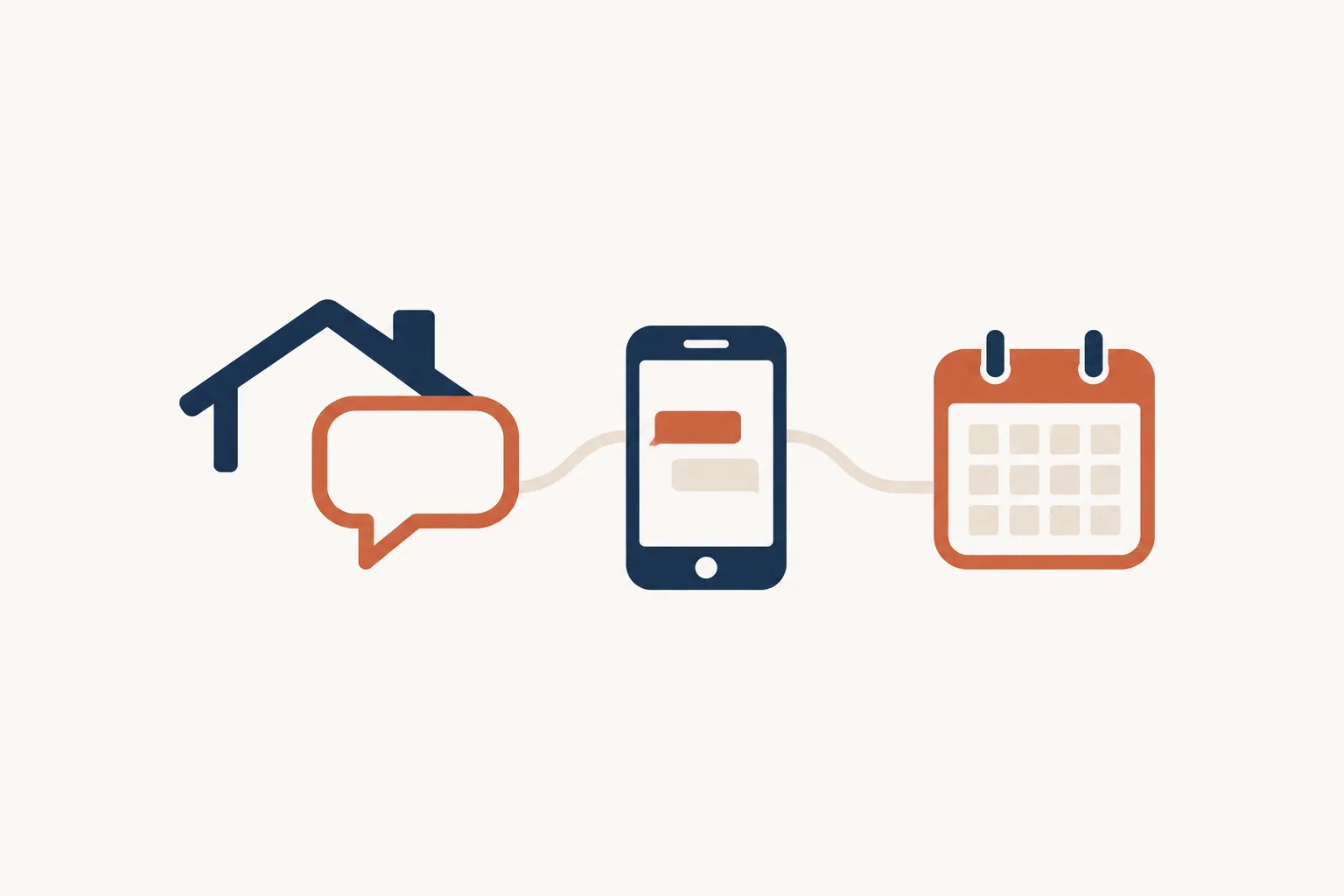
Step by step
- Forward your number Choose all calls or only no-answer, busy or after-hours calls using the forwarding guide.
- Answer as your business Your receptionist gives the virtual-assistant and recording notices, then asks the intake questions you set.
- Receive alerts and bookings Get email and app push notifications, with appointments booked into Google Calendar when you choose.
- Test, then go live Make a test call to check the greeting, intake and urgent-call route before forwarding customer calls.
Choose Which Calls You Forward
You can forward all business calls or choose no-answer, busy or after-hours coverage. Keep using your business number, with a carrier or phone-system guide to help you set forwarding.
- Full coverage
Forward all calls when you want your receptionist to answer first.
- Overflow coverage
Forward no-answer or busy calls while you keep taking calls yourself.
- After-hours coverage
Send calls to your receptionist when your business day ends.
Keep reading
Forwarding determines when a caller reaches your receptionist. If you take calls between showings, no-answer forwarding lets you answer first and passes the call along when you cannot pick up. Busy forwarding covers calls that arrive while your line is occupied.
After-hours forwarding suits an agent who wants help with evening listing inquiries. Full forwarding puts the receptionist first for business calls throughout the day. We provide a local number and instructions for your carrier or phone system. Follow those steps, then check the route with a test call before sending customer calls through it.
Hear What Your Receptionist Says and Asks
Your receptionist opens with virtual-assistant and recording notices, then asks about the caller's request. It uses your onboarding answers and website information to answer within the business rules you provide.
- Clear introduction
The greeting tells callers about the virtual assistant and call recording.
- Useful intake
Questions collect the caller's request and the details you need next.
- Urgent routing
Your instructions determine which calls need an on-call transfer or page.
Keep reading
The onboarding chat asks about your services, service area, hours and the calls you consider urgent. Those answers shape the conversation. A showing inquiry can become an appointment or a callback message, depending on your booking preference.
Callers can speak English or Spanish and switch languages during the call. Your receptionist takes messages and politely ends spam and robocalls. Questions outside its knowledge go into the message for you to handle. For urgent calls, it follows the order you set, offering a warm transfer with a short summary before your on-call person presses 1 to accept.
Get Call Details by Email and App Push
Each call produces an email and app push notification with a summary, urgency tag, transcript and recording. Your dashboard holds the call details, and a daily digest arrives by email.
- Call alerts
Email and app push notifications bring the conversation details to you.
- Booking choice
Use Google Calendar appointments or collect details for your own callback.
- Dashboard access
Review calls, transcripts, recordings, usage and settings in one place.
Keep reading
Your call summary gives you a starting point for the next conversation. For a buyer asking about Saturday, you can review their request before calling back. Open the transcript for the wording or listen to the recording for context.
If you choose booking, your receptionist books appointments into Google Calendar. If you prefer to arrange the visit yourself, it takes the details instead. Summaries are available for you to enter into your other software; direct software connections are not live. You can review appointment handling for showing requests before deciding which approach fits your business.
Test the Call Flow and Change Your Instructions Later
You make a test call before customer calls reach your receptionist. Check the introduction, questions, notifications and urgent-call handling, then use the dashboard to change settings by telling the AI what you want.
- Try a scenario
Call as a buyer with a specific property or showing request.
- Check the result
Read the summary and confirm your alert and booking preferences.
- Change settings
Tell the AI when hours, intake questions or urgent contacts change.
Keep reading
A test call lets you hear your own setup before a prospect does. Use a request you expect often, such as a caller reading an address from a yard sign. Check whether the questions give you enough information for a useful callback.
Then test an urgent request against the instructions you supplied. Review who receives it and what the summary says. You can update settings in plain words as your hours or coverage change. Start with a fictional buyer call in the demo, then request a free trial for your business; we email your sign-in link when ready.
Quick answers
Can I keep the business number on my signs?
Yes. You keep your business number and forward the calls you want your receptionist to handle. We provide a local number and a guide for your carrier or phone system. You choose full forwarding or coverage for no-answer, busy or after-hours calls, then check the setup with a test call.
Will callers hear that this is an AI receptionist?
Your receptionist says it is a virtual assistant and that the call is recorded at the start of each call. Those notices stay on. The conversation then moves into your business greeting and intake questions, using the information and instructions you provided during setup.
What happens when a caller asks something it does not know?
Your receptionist takes the question and the caller's details for your callback. It works from your onboarding answers and website information, so keeping those instructions current matters. Review the summary or transcript to see what the caller needs, then handle the question yourself and update your instructions where useful.
How does an urgent call reach the right person?
You define urgency and the order of contacts during setup. Your receptionist can warm transfer the call or page your on-call person. With a warm transfer, that person hears a short summary and presses 1 to accept. Include an urgent scenario in your test call to check your chosen route.
Can I choose messages instead of appointment booking?
Yes. Your receptionist can collect the request and contact details for you to call back instead of booking. If you choose appointment booking, it uses Google Calendar. Pick the approach that fits your showing workflow, then review the test call summary to check that the intake gives you what you need.
Try the Conversation Before You Set Up
Use the browser demo without signing up. Then request a free trial to teach your receptionist about your business and test your call flow.